

Why is it so hard to generate reports from Power BI based on dynamic slicers or filters? We've...
Connect Power BI to PowerPoint
Slideform eliminates repetitive reporting work. Whether you're generating client performance reviews, campaign summaries, or internal team updates, Slideform's AI agent can connect directly to your Power BI dashboards and generate dynamic reports on-demand or on a schedule.
If you need to change the colors or styling of one of the charts in Power BI for a client report, it can be really difficult to accomplish. Maybe you don't have access to edit Power BI, or you don't want to make changes that are visible to other users. Now, you can use Slideform's AI assistant to create new content from your data without touching Power BI.
Use Slideform to embed Power BI visuals into PowerPoint, and even add new charts and insights from your Power BI data.
In this post, we’ll break down how the Slideform AI agent works with Power BI, how it differs from other AI tools, and how to set it up in just a few steps.
What is Slideform?
Slideform is an AI-enabled automation platform that links data from BI dashboards to reports, PowerPoint decks, and documents. You use your own template, and Slideform fills in the data. Automation is especially useful for reports that you create on a recurring basis each month or week.
AI-powered Reporting is a Productivity Superpower for Power BI
Power BI is a popular dashboard platform, but getting your data into formatted, client-ready presentations often remains a manual and time-consuming process.
Slideform's Power BI-compatible AI Agent solves this by automating:
-
Data collection – pulling charts, KPIs and tables directly from Power BI
-
Visualization – creating new charts from Power BI data
-
Analysis – generating insights and summaries from Power BI data
-
Formatting – inserting updated content into PowerPoint slides and report templates
-
Delivery – generating reports at scale, even across hundreds of accounts
With Slideform's AI agent, your team can reclaim hours each week, ensure accuracy, and maintain consistency across all reports—without dashboard-to-PowerPoint friction.
Slideform can create either PowerPoint or Google Slides. For Google Slides examples, check out Create and Update Google Slides with AI
Comparison with ChatGPT and Existing Tools
There are a few ways teams try to solve the Power BI to PowerPoint reporting problem today:
| Method | Feasibility |
|---|---|
| Manual screenshots | From Power BI, you can export a chart to image or PDF, or use a screen capture tool. Then insert the image into the PowerPoint. This approach is time-consuming, and often misaligned with brand guidelines. |
| Power BI add-in for PowerPoint |
You can insert individual visuals or entire report pages from Power BI into PowerPoint. This may work for simple use cases, but it has important limitations. It is not designed to switch between multiple clients or filters, there is no scheduling functionality, and it is subject to additional Power BI licensing and access. |
| ChatGPT | ChatGPT cannot connect to Power BI. You would have to export the data and re-create the charts manually. ChatGPT can create simple PowerPoint decks for you, but the results vary. |
By contrast, Slideform's AI integration with Power BI offers the best of all worlds:
-
Direct Power BI integration with real-time data pulls
-
Templated, branded output in slide or document form with minimal effort
-
Can be triggered via Slideform app, API, or schedule
-
Handles chart rendering, AI-generated text summaries, and layout placement automatically
-
Easily scaled—generate dozens or hundreds of customized reports at once
This approach is purpose-built for teams that need repeatable, structured, and client-ready reports, not just internal dashboards or generic AI-generated decks.
What does Slideform's Power BI AI Agent do?
Slideform is designed especially for reporting, not chatting or answering customer service questions. It handles templating, scheduling, and formatting while staying tightly integrated with your Power BI data. Here's what it does under the hood:
-
Connects to Power BI: Slideform securely connects to your Power BI to pull live data. Slideform's scope is limited to read-only access. It can fetch all the charts, tables, and the data behind them, but it doesn't have the ability to edit the data in Power BI. It does not use an MCP server for Power BI, but instead has a proprietary integration custom-built for Power BI.
- Performs analysis: Query, filter, and perform operations over your data using natural language prompts. For example, you can ask the agent to identify trends in the data, summarize the data by client or category, or generate bullet points to summarize a chart.
-
Creates visuals: The Slideform analyst can create new tables, charts, and time-series graphs from your data using a prompt. The visuals can be formatted, colored, and resized to match your branding. Slideform does this by writing and executing a custom Python script to process and chart your data for you. Just ask it to create a chart and watch it go to work for you. Once the chart is done, you can embed it into a report.
- Maps data to templates: You define a presentation or document template (e.g. PowerPoint or Google Slides) using placeholders like
{{sessions}}or{{chart:revenue_per_channel}}. The agent replaces these dynamically with data, text, charts, or tables. -
Scales across clients or teams: The same template can be reused with different filters—for example, by client, region, or category—making bulk reporting fast and consistent.
-
Enables scheduled and on-demand reporting: Generate a deck instantly, or set it to refresh and deliver on a set schedule.
This level of automation goes beyond typical AI chatbots and text summaries. It's closer to having a full-time reporting assistant who never makes a mistake and never misses a deadline.
Example Use Cases
Slideform's AI agent for Power BI reporting isn’t just a timesaver—it transforms how teams create, distribute, and scale their reporting operations. To create a new metric or chart, just enter a simple prompt. Then, use the Slideform interface to match that element to a placeholder in your slide deck template. Here are a few examples:
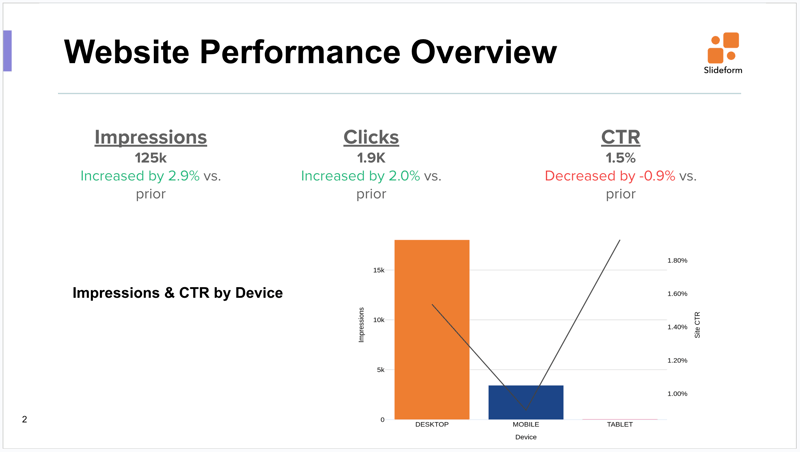
Monthly Client Analytics Report: Deliver scheduled reports showing KPIs like Impressions and CTR, filtered to a specific client and date range, directly from Power BI.
Slide template: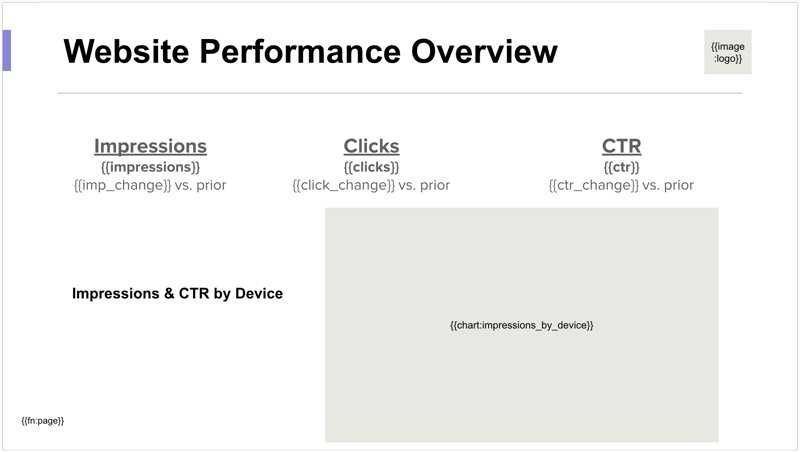
Change in a value compared to prior period
- Placeholder: {{click_change}}
- Pull the value from Power BI. Change the text color and add the words "Increased by" or "Decreased by" depending on the change value.
Make a new chart with new colors and styling
- Placeholder: {{chart:impressions_by_device}}
- Prompt: "Create a column chart of the number of impressions and the Site CTR for each device type. Device should be on the x-axis. Show the Impressions on the left y-axis and CTR on the right y-axis. Show the CTR line in black."
Slide output:
Other Use Cases -->
-
Client QBRs: Automatically generate quarterly business review decks using live Power BI data, customized for each client’s industry, performance, and goals.
-
Sales Enablement: Create personalized pitch decks based on a prospect’s activity, lifecycle stage, and opportunity history—without sales reps needing to touch Power BI.
-
Internal Updates: Provide internal teams with timely, automated reports highlighting KPIs and operational milestones.
Key Benefits of a Dedicated Power BI Agent:
-
Time savings: Eliminate the hours spent copying data and formatting PowerPoint.
-
Consistency: Standardize reports across clients, teams, or regions with templated output.
-
Accuracy: Pull live data directly from Power BI—no risk of outdated screenshots or missed metrics.
-
Scale: Automate 10 reports or 1,000 without adding headcount.
-
Brand control: Every report aligns to your company’s style guide, fonts, and color palette.
These improvements are especially impactful for agencies, consultants, or RevOps leaders who are constantly churning out reports—but anyone who uses Power BI data for communication will benefit.
Getting Started
Setting up Slideform for Power BI reporting is easier than you might expect. Here’s what you need:
🔗 1. Connect to Power BI
Authorize Slideform access to Power BI reports. You control the scope and can revoke access anytime.
🧩 2. Create a Reporting Template
Use your existing PowerPoint deck as a starting point. Replace content blocks with placeholders like {{chart:impressions}}.
⚙️ 3. Map Power BI Data to the Template
Define which Power BI data should populate each placeholder. This might include:
-
Embed an existing chart from Power BI
-
Create new charts and tables with Slideform's AI Agent
-
Calculate bullet points or metrics (e.g. trend in impressions)
📅 4. Trigger Reporting
Choose how and when to run the report:
-
On-demand (via API or UI)
-
Scheduled (e.g. every Monday at 8am)
-
Bulk (e.g. generate 100 versions filtered by client or rep)
🔐 5. Consider Privacy and Security
Slideform uses secure token-based authentication and does not store your report data unless configured to do so. Additional privacy and security information can be found in the Slideform Trust Center.
Benefits of Automated Reporting with Slideform
With Slideform, your team can generate polished, data-driven presentations automatically. Slideform scales with the number of reports you make, and there's no limit to the number of users, data sources, or report templates you can add. You can reuse the PowerPoint decks that you already have, and it's easy to schedule updates and generate new decks.
With Slideform, Power BI reporting doesn’t have to be a chore—automate it and focus on growing your success!