
You can turn an existing PowerPoint or Google Slides deck into a reusable template with AI by uploading the deck, identifying the parts that should change, replacing those parts with placeholders, and mapping live data, charts, tables, and written summaries into the same layout for future reports.
This is different from creating a new template from scratch. The starting point is a deck your team already uses: a client report, QBR, sales update, board summary, or executive review that has the right shape but takes too much manual work to refresh.
GOAL: Convert an old presentation into a repeatable reporting template so your team can reuse the same deck structure with fresh data, charts, and commentary.
What is Slideform?
Slideform is the AI Analyst for business analytics and reporting. It helps teams connect dashboards, spreadsheets, CRMs, and other business data to branded outputs like Google Slides, PowerPoint, PDF reports, emails, and dashboards.
Why Old Decks Are Hard to Maintain Manually
An old deck is often the best starting point because it already reflects how your team talks to clients, leaders, or internal stakeholders. The problem is that most old decks were built as final outputs, not as reusable systems.
Every reporting cycle, someone has to hunt through the deck and figure out what changed:
- Client names
- Date ranges
- KPI values
- Charts and tables
- Slide headlines
- Executive summaries
- Comments and recommendations
That work is easy to underestimate. A deck can look simple while hiding dozens of small manual updates.
What Should Stay Static vs. Dynamic?
The first step in converting a deck is deciding what should stay fixed and what should refresh.
Static content usually includes:
- Brand styling
- Slide layouts
- Section titles
- Backgrounds
- Typography
- Design rules
Dynamic content usually includes:
- Client, account, or region names
- Reporting periods
- Metrics and KPI values
- Charts
- Data tables
- Written insights
- Recommendations and next steps
Slideform helps you preserve the static parts of the deck while replacing dynamic content with named placeholders that can be mapped to live data later. For the broader workflow, see the full guide to the Slideform AI Analyst for presentations, charts, and insights.
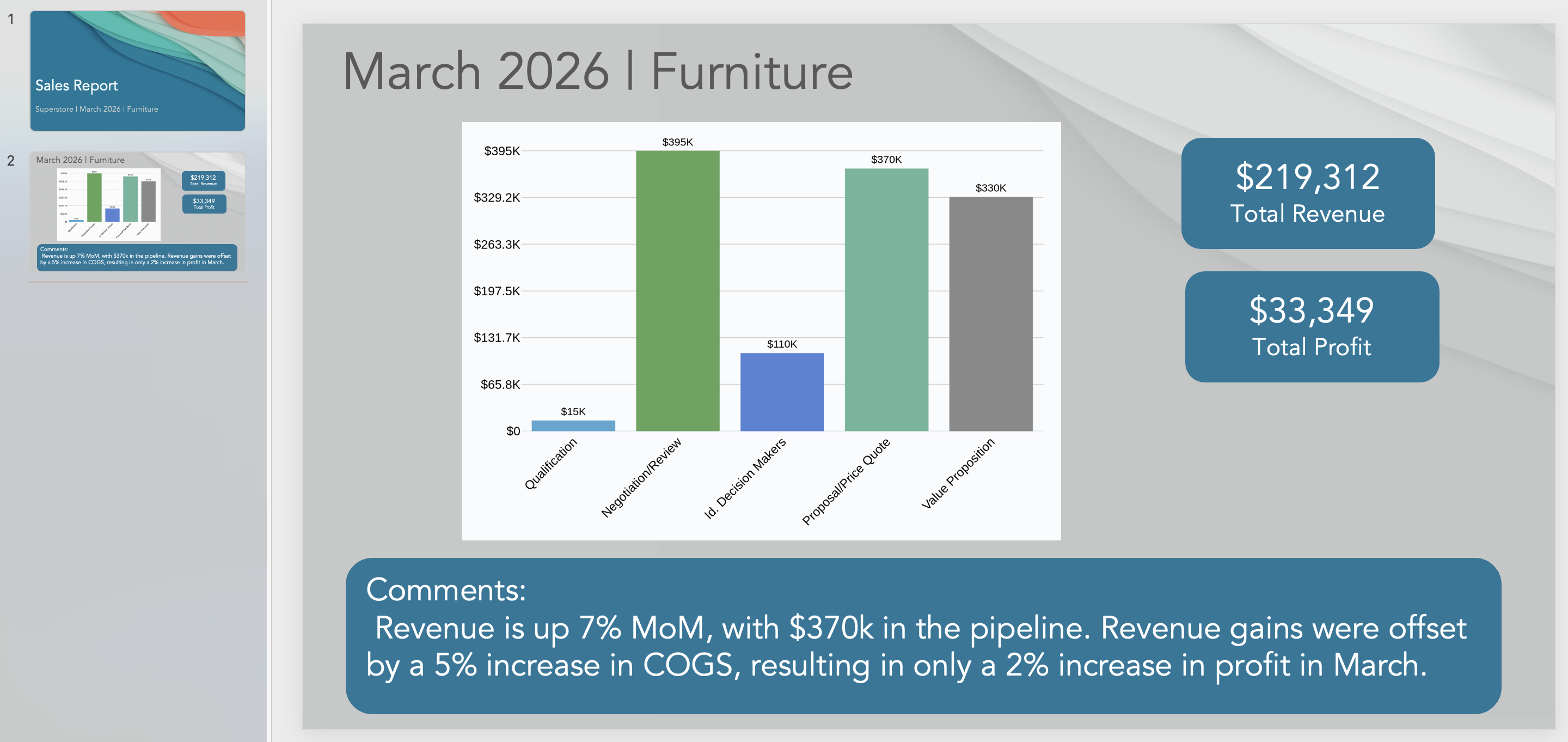
Existing presentation
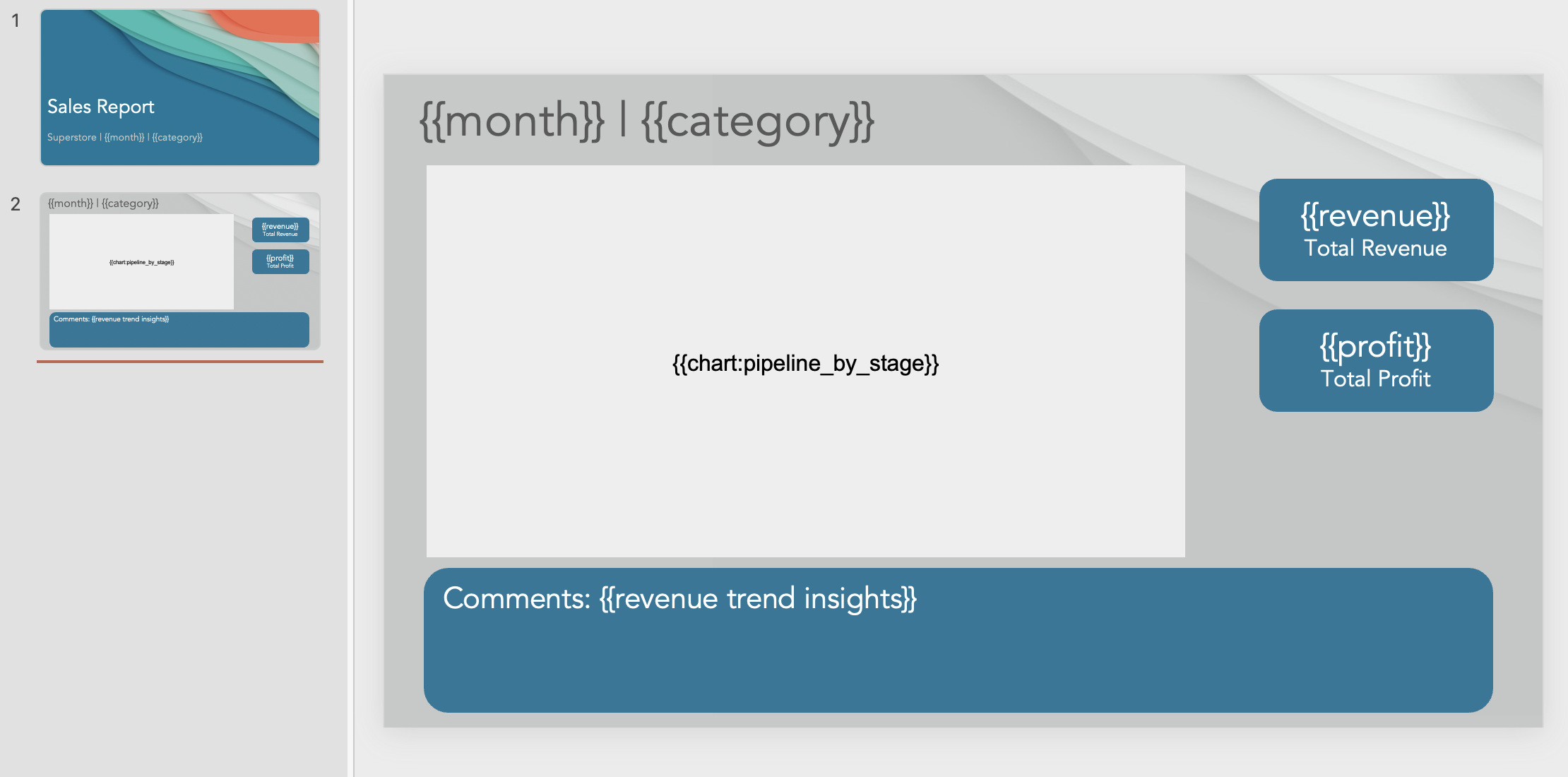
Reusable template
How Slideform Converts a Deck into a Template
Step 1: Upload the existing deck
Start with the PowerPoint or Google Slides deck your team already uses. This could be last month's client report, a successful QBR deck, a sales pipeline review, or an executive update that has the right format.
Step 2: Identify repeatable sections
Review the deck and mark the sections that repeat from one report to the next. A good recurring template usually has a predictable flow: title slide, summary, KPI overview, charts, supporting details, and recommendations.
Step 3: Replace changing content with placeholders
Replace content that should update later with placeholders. For example:
The deck still looks and behaves like a presentation, but the dynamic areas are now ready to receive updated content.
Step 4: Add pragmas and template rules
Pragmas and template rules help control how dynamic content behaves. They can help preserve formatting, define repeatable sections, or control which content appears for different versions of the report.
Step 5: Map live data into the template
After the placeholders are in place, connect the data sources that supply the content. This might be a spreadsheet, CRM, BI dashboard, database, or warehouse.
- Revenue value to
{{revenue}} - Pipeline chart to
{{chart:pipeline_by_stage}} - Top account table to
{{data:top_accounts}} - Summary text to
{{revenue trend insights}}
Step 6: Generate one or many versions
Once the deck is mapped, you can generate one output right away or create many versions from the same template. For example, one client report per account, one sales review per region, or one performance update per business unit.
How This Differs from Creating a New Template
If you are starting from a blank page, read our guide to creating a presentation template with AI. That workflow is best when you need a new report structure or a fresh visual direction.
This conversion workflow is better when you already have a deck that works. You are not asking AI to invent the whole presentation. You are using AI to help turn a proven deck into a reusable system.
Use Cases for Deck Conversion
Client QBRs and EBRs
Turn last quarter's client review deck into a template that refreshes metrics, charts, account commentary, and next steps.
Sales pipeline reviews
Convert a weekly pipeline deck into a repeatable template for different teams, territories, or sales leaders.
Marketing performance reports
Reuse a client-facing campaign report and refresh channel performance, campaign results, and recommendations each month.
Executive reporting
Keep the leadership narrative consistent while updating charts, KPIs, business unit summaries, and operating metrics.
Common Mistakes to Avoid
Turning everything into a placeholder
Not every text box needs to be dynamic. Keep stable headings, section labels, and design elements fixed so the template remains easy to manage.
Using unclear placeholder names
Names like {{metric_1}} or {{chart_new}} become confusing quickly. Use descriptive names like {{revenue}}, {{chart:revenue_by_month}}, or {{data:top_accounts}}.
Ignoring chart size and layout
A chart placeholder should match the space where the chart will appear. Otherwise, the generated output may need manual cleanup.
Skipping a test run
Before scaling the template across many clients or accounts, generate one report and review spacing, formatting, placeholder behavior, and exported output.
Frequently Asked Questions
Can I turn a PowerPoint deck into a template with AI?
Yes. You can use Slideform to convert an existing PowerPoint deck into a reusable reporting template with placeholders and live data mappings.
Can I turn a Google Slides deck into a template with AI?
Yes. The same workflow can apply to Google Slides decks that need to be reused for recurring reports.
Do I have to redesign the deck?
No. The point of this workflow is to preserve the layout and design that already work while replacing dynamic content with reusable placeholders.
Can one template create many client reports?
Yes. Once the template is mapped, you can reuse it across different clients, accounts, regions, or reporting periods.
What if the old deck is messy?
You can still use it as a starting point, but it is worth cleaning up duplicated layouts, inconsistent fonts, and unclear sections before scaling it.
Related Guides
- Slideform AI Analyst for Presentations, Charts, and Insights
- Create a Presentation Template with AI for Recurring Reports
- Create and Update PowerPoint Presentations with AI
- Create and Update Google Slides Presentations with AI
- Generate PowerPoint from Excel with AI
Upload an Old Deck and Turn It into a Template
If your team already has a deck that works, you do not need to start over. You can turn the structure you already trust into a reusable Slideform template with placeholders, live data, and scheduled refreshes.
The result is a reporting workflow that keeps the familiar deck format while removing the copy, paste, rebuild, and cleanup cycle.
See what Slideform can do for you
Get full access to Slideform with a free trial. No credit card required.