
This release adds a new GitHub connector, expands Salesforce and HubSpot data coverage, and introduces dashboard-driven Bulk Mode to generate multiple presentations at once. It also improves usability with a guided AI Assistant and a new project wizard that makes setting up automated reports faster and more intuitive.
Slideform now has integrations with 18 of your favorite data warehouses, BI tools, and CRM solutions! Have you checked the list to see what you could automate with Slideform? See Data Integrations.
New Data Integrations
 GitHub Connector - Analyze your GitHub activity and generate reports directly in Slideform. Calculate metrics, create charts, and summarize performance data with Slideform AI. Then embed the results in an email or Google Slides / PowerPoint. Here's a detailed guide: Embed Github Metrics in Slides
Data Upgrades
 Salesforce - Slideform can now read and analyze custom objects and file attachments in Salesforce, along with standard objects like Accounts, Contacts, and Opportunities.

HubSpot - Slideform now captures HubSpot Activities and Marketing Hub data as well as custom and standard objects in Sales Hub and Service Hub.
Dashboard-driven Bulk Mode 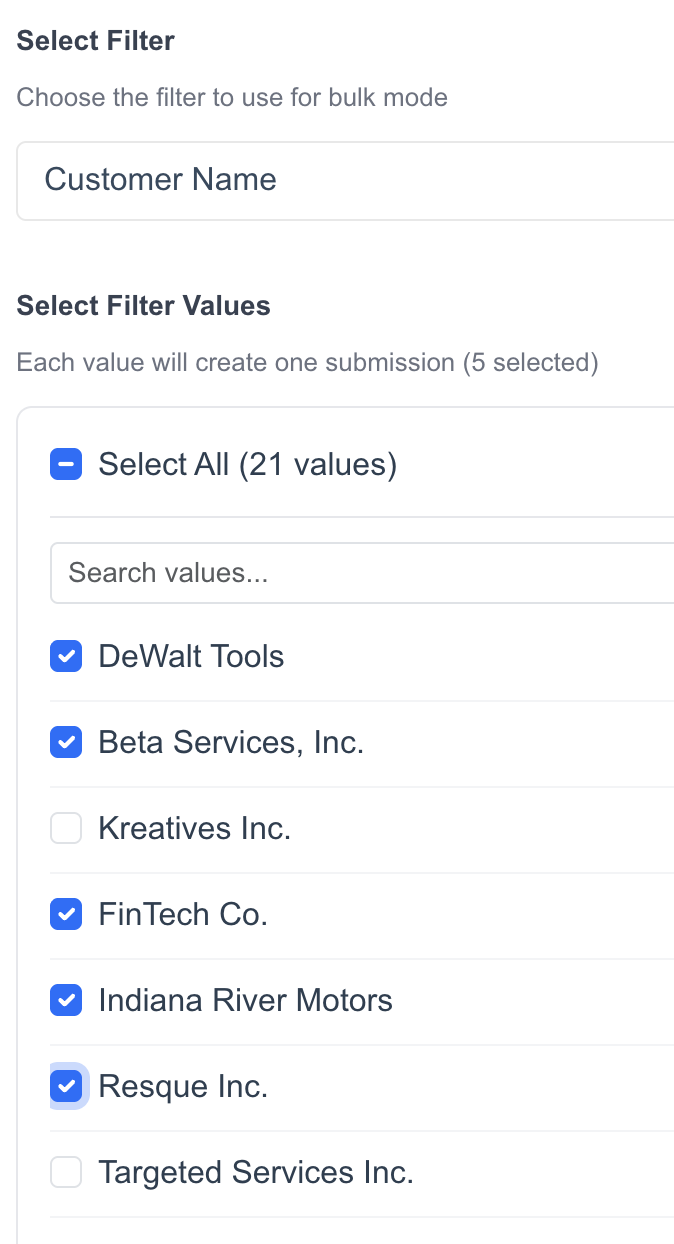
Do you need to generate a presentation for each value of a dashboard filter? We have now improved our Bulk Mode capability to directly use dashboard filters to create multiple presentations!
After setting up the data source, presentation template, and data mapping, use Bulk Mode to choose the filter and select the values you want to use to create presentations.
For example you can use a Customer Name filter on your dashboard to create a report for each of your clients all at once.
For more information and a handy tutorial, go to Bulk Mode from a Dashboard.
Usability Improvements
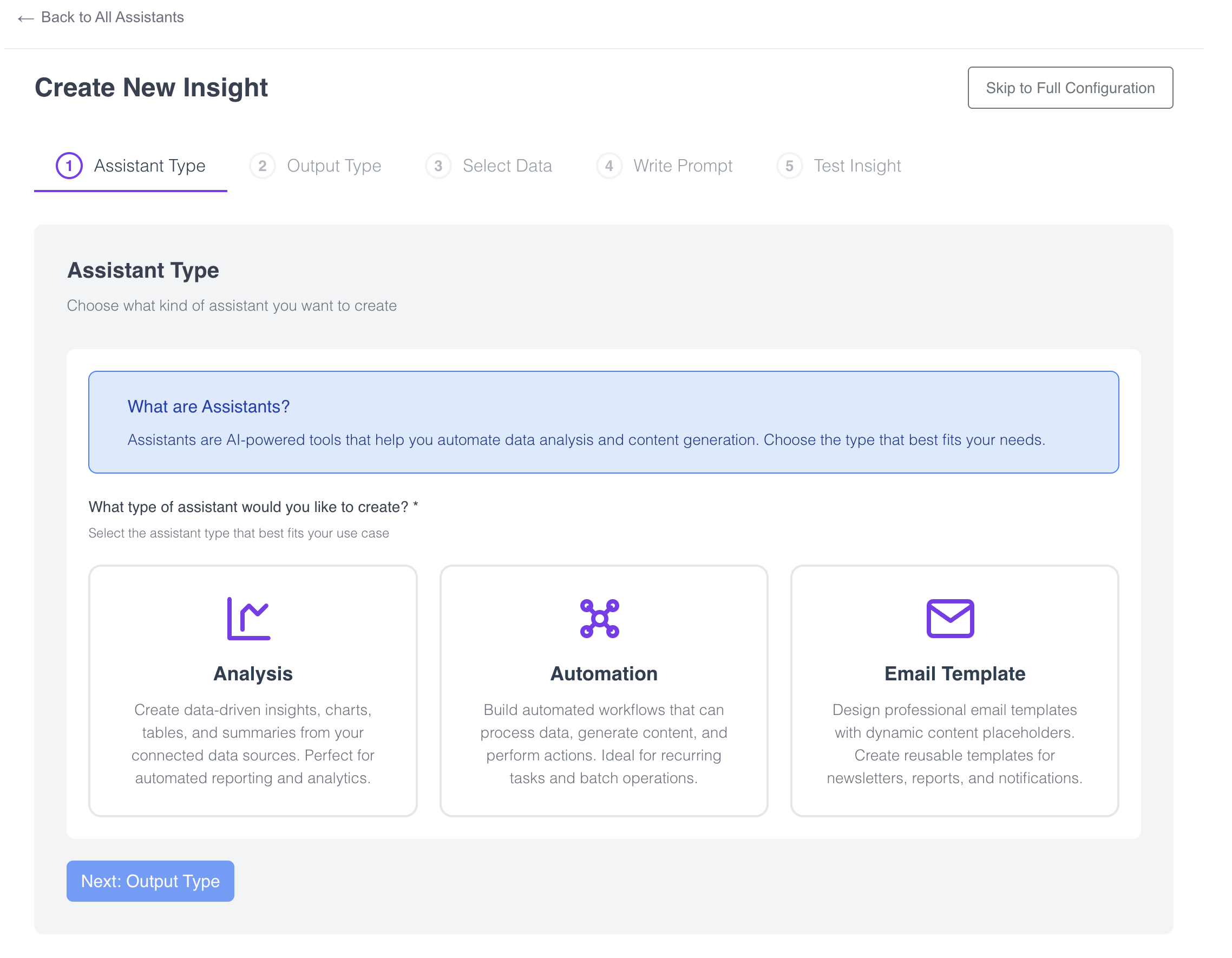
We've added some guidance to help you create new charts and insights with the AI Assistant. The new interface steps you through data selection, entering a prompt, and refining your automated reporting. Check it out in AI Assistants > New Assistant.
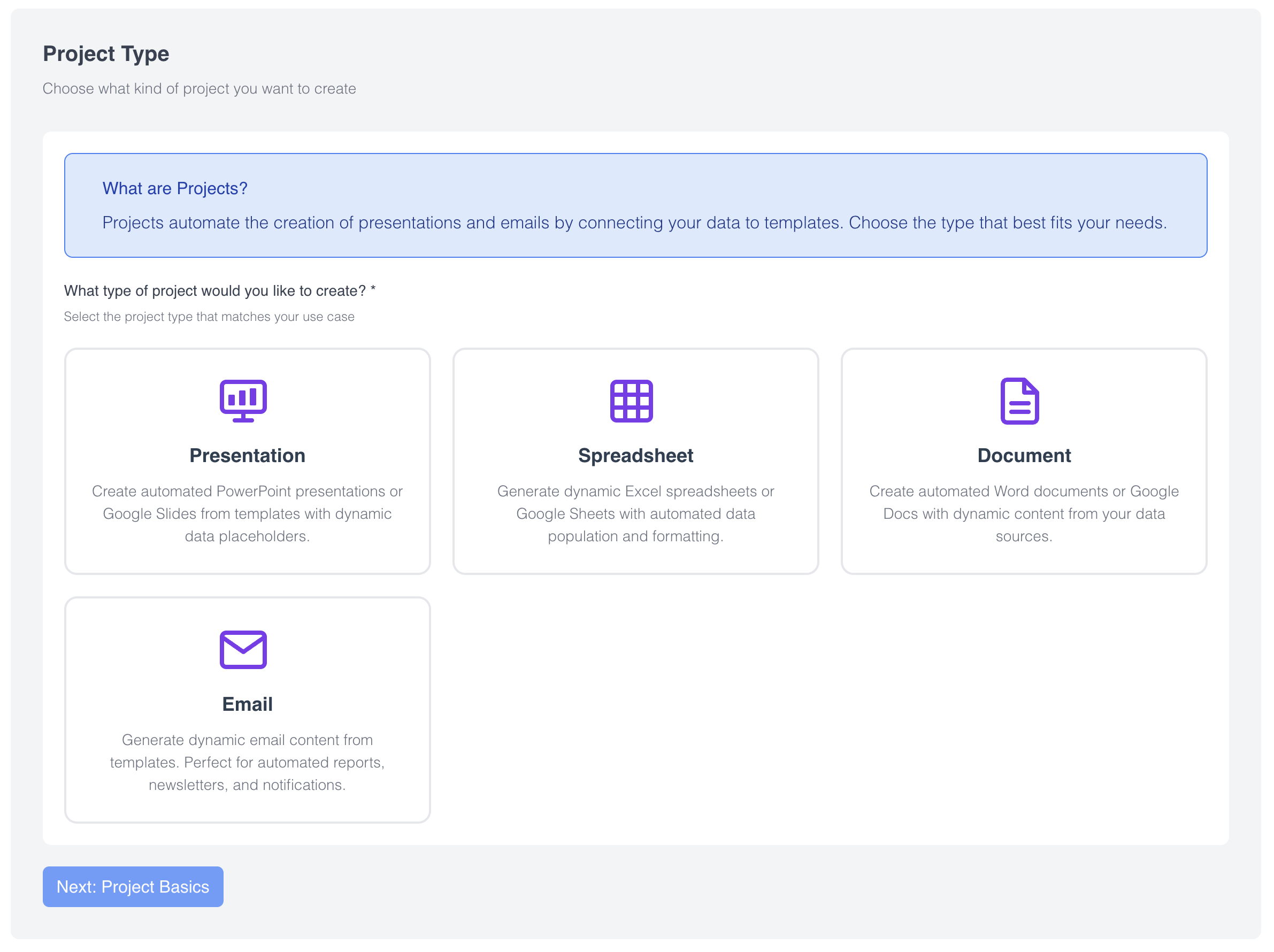
Use the new project wizard to create an automated report in a presentation, spreadsheet, document, or email format. The wizard guides you through each step of template setup, data source selection, and matching data to the pragmas. Just click New Project to get started.
Log in to Slideform to try these features today or request a demo to see how the new connectors, AI tools, and design options can speed up your reporting.
